Model home
A model's landing page: the five-step record of how it was built, what it's worth, and every door into it.
Opening a model lands on its home page. The page is a record of the model's own build, step by step, followed by what it's worth now and every door into the rest of the work.
The five-step record
The body of the page is five steps, in the order the work happens. The first step that is not finished is the one that opens; the others collapse to a caption row you can click open. Each header reads Step 1 … Step 5 with the step's title and a one-line summary.
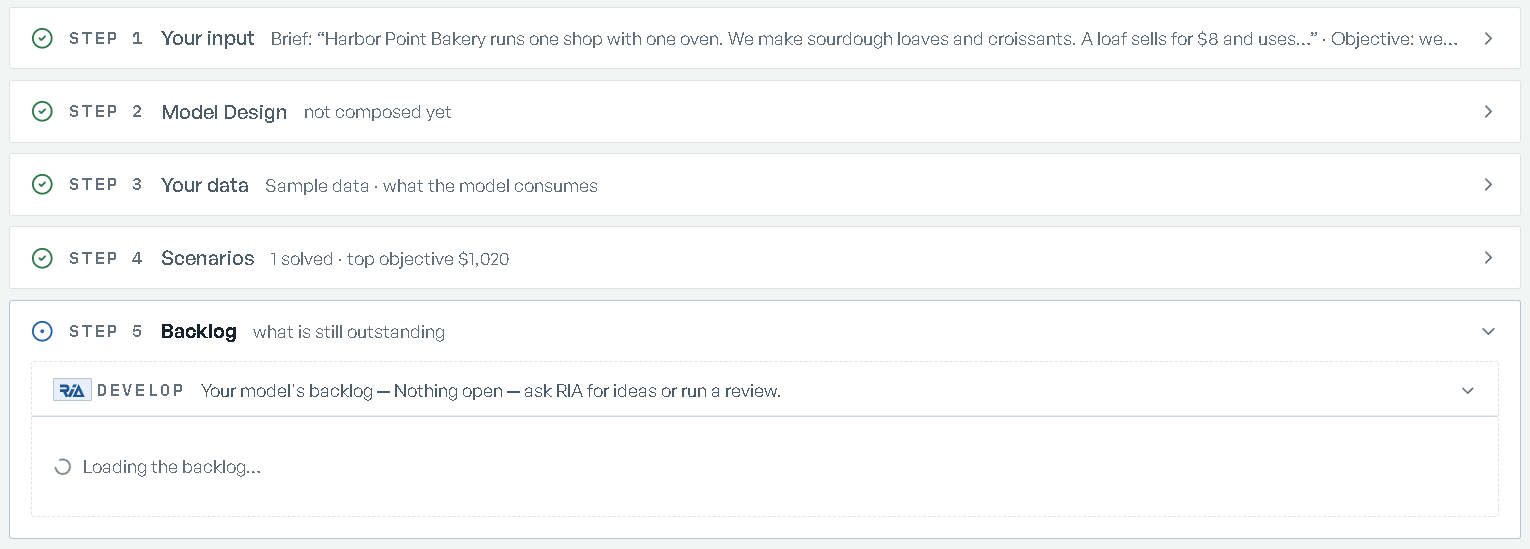
| Step | Title | Counts as done when | What's inside |
|---|---|---|---|
| 1 | Your input | always | the brief you wrote, with Edit and Change answers; a model built from a file shows Replace the workbook instead |
| 2 | Model Design | the design record is confirmed and the model is not paused for review | the Model Design card, Your model, described, and Send back |
| 3 | Your data | the data step is closed and the model isn't waiting on data | what the model consumes, and the tables it still wants |
| 4 | Scenarios | at least one scenario is solved | the first six scenarios with status and objective, then Open scenarios (or Run a what-if when there are none) |
| 5 | Backlog | nothing is open on the backlog | the Develop zone — see Changing a model |
Step captions carry the state: step 1 reads Brief: "…" and Objective: …, step 3 reads
what the model consumes or the count of tables it still wants, step 4 reads how many
scenarios are solved and the top objective, and step 5 reads nothing outstanding or the number
of open items.
Editing the model itself starts in step 1, on this page: Edit opens your brief and goal in place — "Saving reads the brief again; answers to questions that still apply are kept." — and saving takes you into the model's build steps to carry on from there. See Changing a model.
Step 2: the Model Design card
Step 2 holds the model's design record: the account of what was built, in business language.
The card is headed Model Design, with a one-line summary and a status chip: for your
sign-off when something needs your sign-off, clean when nothing does. The summary says why
it asks, in sentences such as "1 thing you asked for is not in this model yet" or
{n} assumed values await your sign-off. With nothing to sign off it counts what was set aside,
such as {n} left out on purpose, or reads "everything came from your own inputs". The card
opens by itself when there is something to disclose.
Its sections, each shown only when the model has something in it:
| Section | What it holds |
|---|---|
| Decision | your brief, played back, with the goal underneath |
| Scope | chips counting what the design names, such as 15 products named, then the names themselves, five before +N more. When your data holds more rows than the design names, the row says so: {n} rows on {sheet} |
| Where your data lands | which of your sheets feed each part of the model, and how many rows |
| What we did not use | sheets the model did not use, with the reason, and any rows lost on the way in |
| Rules | the goal in one sentence, then each rule as a sentence |
| Assumed | every value nobody gave, with what was used and why; with nothing assumed it reads "Nothing assumed — every value came from your own inputs." |
| Your data | the tables the model reads, each tagged your data, sample data, filled in for you, or to provide |
| What it does | what was built, each with the quote behind it, then anything left out on purpose, each with its reason |
If the model is still paused for review, step 2 says so and offers Review the design. Once
the design is accepted, the step reads "The structure is accepted. Sending it back re-opens the
questions with your answers kept." and offers Send back: give a reason (the field asks
"What was wrong? (e.g. the capacity sheet had last year's numbers)") and confirm with Send
back with this reason. The reason is recorded on the model, and the model's baseline is cleared
until it is solved again. On the Build step's Check the design page, your reason is then
listed at the top under What you asked to be corrected. A model with no record yet reads
"No Model Design record for this model yet.", and its step 2 caption reads not composed yet.
How the design was composed and accepted is covered in Building models. What the build proved, and the independent review of it, are covered in Validation & trust.
Your model, described
Under the card sits Your model, described: the files to take the model away with you. The same card ends the Build step's Review page and the Solve step, so it has one name wherever you meet it.
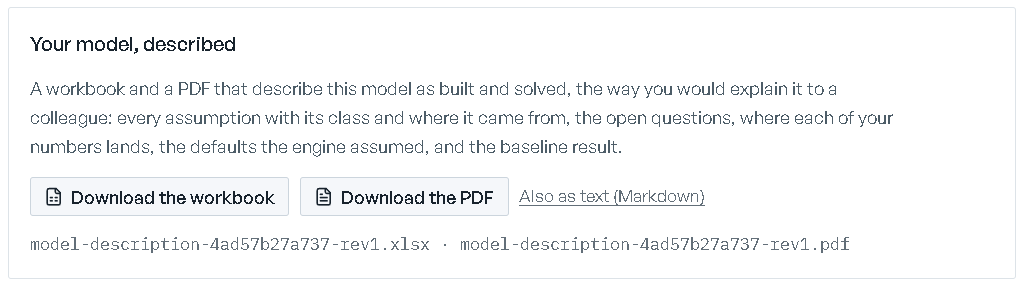
- Download the workbook and Download the PDF. Before the build they describe the design: the decision, what is in scope, the rules, what was assumed, what was left out, the data you provide, and the checks. Once the model is built they describe it "as built" — "as built and solved" once the baseline is solved: every assumption with its class and where it came from, the open questions, where each of your numbers lands, the defaults that were assumed, and the baseline result.
- Also as text (Markdown) gives the design record as plain text.
The files share one name per model and revision, shown under the buttons as
model-description-{model}-rev{n}.xlsx · model-description-{model}-rev{n}.pdf, so every copy
you keep sorts into one series.
Suggested next
Under step 5, Suggested next lists what to do now. Each row is a title, one line of why, and exactly one button — the top row's button is the page's primary action. Five show at a time; the rest fold into More suggestions.


Rows lead to scenarios, the design review, workspaces, workflows, or the Develop backlog. Dismiss one with its X and it stays dismissed on the model. While the list loads it reads "Checking what's next…"; when there is nothing to do, "Nothing pending — run scenarios or explore workspaces whenever you like."
Headline
Headline is the model's score. Two stats, and then the account of what the plan decided.


- Base — the objective value of the accepted solve, or
—when there isn't one yet. - Scenarios solved — n of total.
Below them, a paragraph explains the result in business terms: what the plan makes, what it's worth, and which limits bind. It is only written when the model's state and its solved objective agree; when they disagree the paragraph is withheld and a warning line appears in its place rather than a narrative that can't be trusted.
Topology
Topology shows what was actually built: the model's revision and state, its domain and tags, and cards counting its source, solve, identity and size. A strip of KPI chips runs across it, and market factors the platform is watching appear as chips tagged with what they affect. Four lenses switch what the diagram draws — Topology, Flows, Constraints, Money — and the diagram has its own zoom and fit controls. Reading the numbers the diagram reports is covered in Reading results.
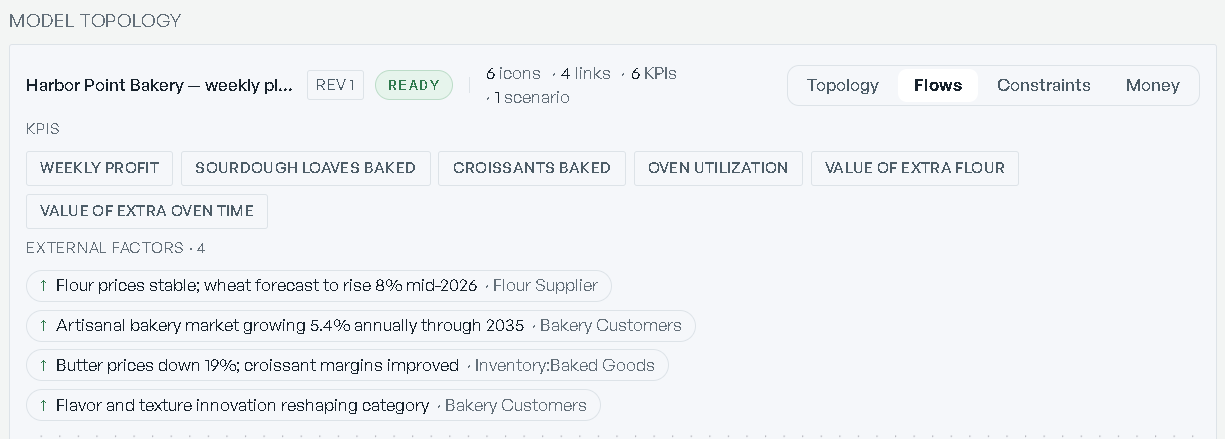
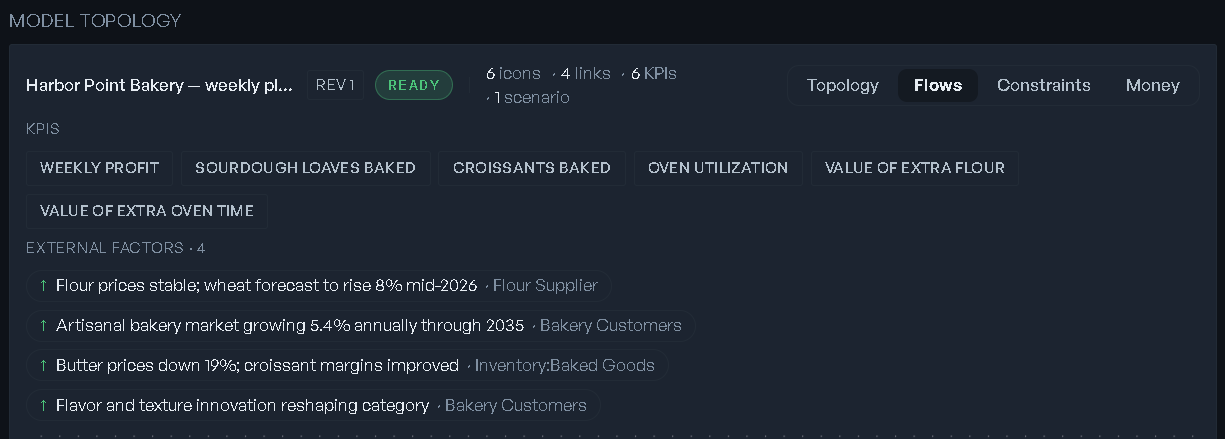
If the diagram hasn't arrived, the panel says "The topology didn't load" and asks you to reload the page; nothing else on the page depends on it.
KPIs
The KPIs card appears once at least one scenario is solved. Tiles show the label, the value, and whether it is Verified or Estimated.
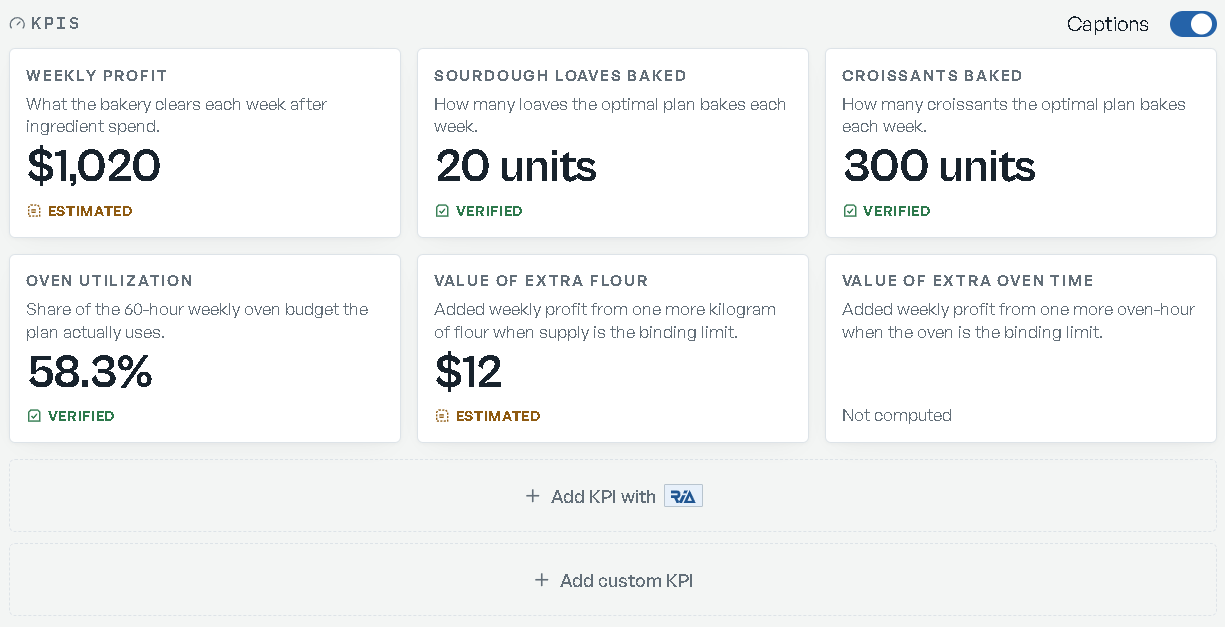
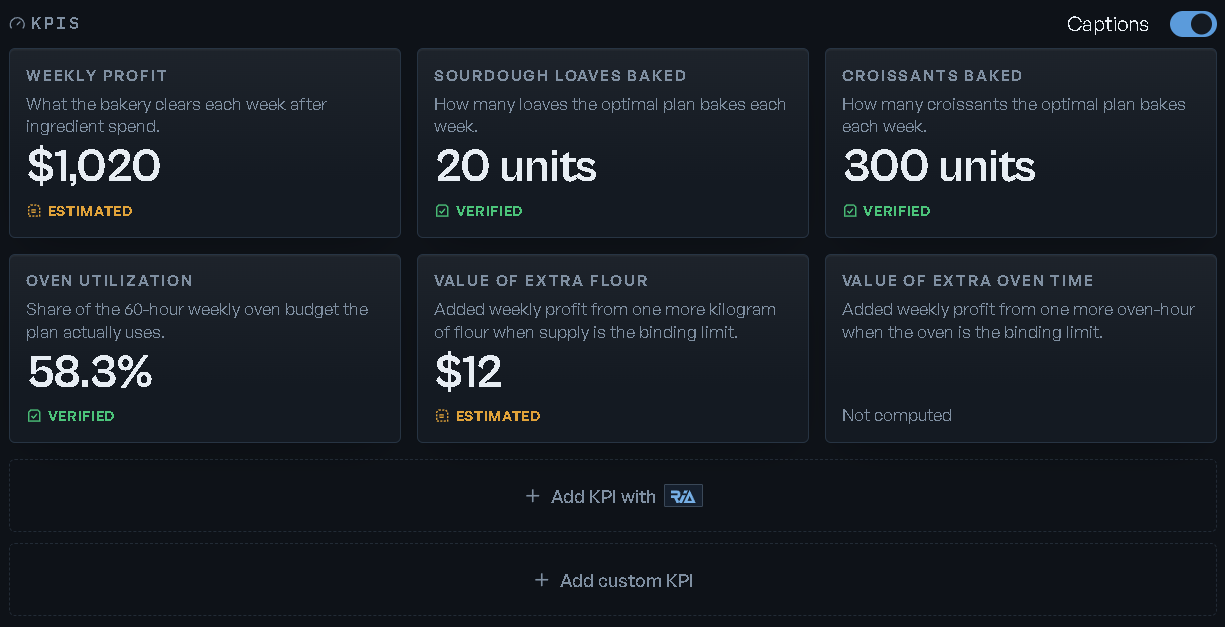
- Captions turns the caption line under each value on and off.
- Six tiles show at a time; View more and View less page through the rest. Drag a tile to reorder, and the order sticks for the model.
- With more than one scenario solved, the card header gains a scenario picker —
(currently displaying …)— so the tiles can read any solved scenario's numbers. - The add tile offers Add KPI with RIA and Add custom KPI. See KPIs & custom metrics.
Clicking a tile opens its trace. Reading a tile is covered in Reading results.
Requirements
Requirements is the ledger of what you said you needed, each with an honest verdict. It ships collapsed and opens itself only when a requirement is failing. Seed it from what you already told the system with Seed from what I said, or type one into New requirement and press Add. See Validation & trust.
Doors
Cards lead into the rest of the model. At most four render.
| Card | What it's for |
|---|---|
| Credentials | "Proof ledger, review rounds, requisition." — the model's build record, once it has one. When checks and a review verdict exist, the preview counts them. Reading its proof ledger, independent review and How this is built (for modellers) drawer is covered in Validation & trust |
| Model Design | "Your workbook's definition: what landed, what wasn't used, what was assumed." — shown instead of Credentials on a model built from an import that has no gate record |
| Workspaces | "Build an analysis canvas from a preset.", or the most recent board's name — Workspaces |
| Workflows | "Define a gated process for downstream users.", or a count of published and total workflows — Workflows & runs |
| Review & improve | "RIA reviews the model + solve and proposes improvements — each one lands in your backlog." Opens the Develop zone in step 5 in place. Before a solve it reads "Solve the base first — then RIA can review the results."; while the model is importing, mapping, solving or reconciling it reads "Available once the solve lands." and the card is disabled — Validation & trust |
Recent activity
The last section is Recent activity — up to eight entries, each written as a sentence: who ran a validation, who authored a revision, a data choice, a brief answered or revised. A new model reads "No team activity on this model yet. Edit your input in step 1, or run a scenario, to see entries land here." Full audit log → opens the model's full record either way, including when the feed itself failed to load.
The header
Beside the model's name sit its tier — Personal or Organizational — a Locked chip when structural changes are blocked, and the validation badge once checks have run. Click the badge to open the record: see Validation & trust. The pencil renames the model in place.
The header's buttons:
- Solve — or Solve again when a baseline already exists. It asks first: "Solve for your baseline?", and states that the current baseline is replaced and that "The headline fills in when it lands; you can leave the page while it runs." Confirm with Solve. While a solve is running the button becomes Stop solve.
- Versions — the revision snapshots, with a diff and a revert per revision.
- Audit log — who did what, when.
A model with two or more revisions also carries a maturity line above step 1 — a spark of the
objective across revisions, {n} changes, the movement since the first build, and
See history → into the timeline. A model on its first revision has no such line. See
Changing a model.