KPIs & custom metrics
Where a model's KPIs come from, how to add one RIA suggests or build your own, and how any number can be proved back to the model.
KPIs are the numbers a model reports on every scenario. RIA proposes the first set from what the model optimizes for and what limits it; you add the rest. Reading the tiles is covered in Reading results — this page is about defining them.
Where the tiles live
The KPIs card sits on model home under the topology, and on the Scenarios screen. On model home it appears once at least one scenario is solved.
- Captions switches the caption line under each value on or off. It starts off.
- Six tiles show at a time; View more and View less page through the rest.
- Drag a tile to reorder. The order is saved for the model, not for you.
- A model with no KPIs yet reads Selecting KPIs for this model — "RIA picks the metrics worth watching based on the model's constraints and objective." — with a Reload button for a model whose KPIs were already cached.
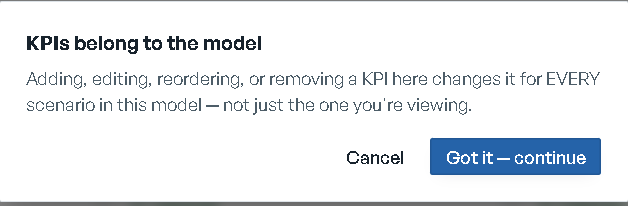
KPI definitions belong to the model, not to a scenario. The Scenarios screen says so the first time you change one there: KPIs belong to the model — "Adding, editing, reordering, or removing a KPI here changes it for EVERY scenario in this model — not just the one you're viewing." Cancel backs out; Got it — continue goes ahead.

Verified or estimated
Every computed value carries its own mark:
- Verified — "reconciled against the solve."
- Estimated — "derived; open the KPI and run the trace to verify."
A number nobody computed for the scenario you're looking at reads Not computed, with no mark beside it — there is nothing to stand behind.
Two more marks can ride on a tile: All types, when the tile is network-wide while the rest of the canvas is filtered to one type, and Partial coverage, which carries the caveat from the check that noticed it.
Adding a KPI
The whole flow happens inside the grid's add tile. It offers two doors: Add KPI with RIA and Add custom KPI.
Metrics RIA suggests
Add KPI with RIA probes the model straight away — "Probing the Base solve…" — and lists what it can compute under RIA suggests. Each row is the metric's label with a preview value read off the Base solve; hover it for why RIA proposed it. Accept it with the check — "Add this metric: backfills + verifies it across scenarios." — or drop it with the ✕.
The regenerate button asks for a different set: "None of these — dismiss the batch and propose different metrics." When there's nothing left worth adding, it says so rather than inventing one: "Nothing new to suggest — every metric this model can verifiably compute is already tracked."
Build a custom metric
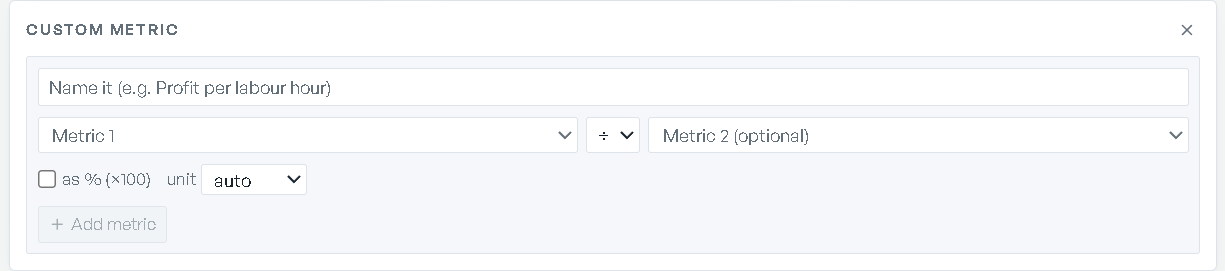
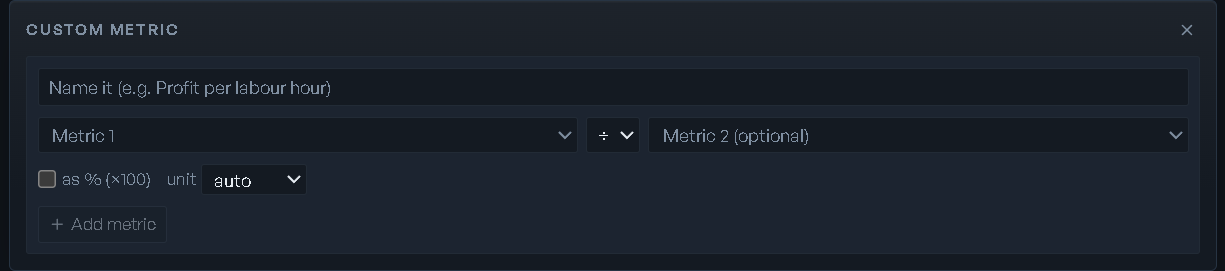
Add custom KPI opens the builder under the header Custom metric.
Name it
The field's own example: "Name it (e.g. Profit per labour hour)."
Pick the quantities and the operator
Metric 1 is required; Metric 2 (optional) is the second operand. Both pick from what the model actually reports. The operator between them is one of four: ÷, +, −, ×.
A ratio can be rescaled with as % (×100) — "Multiply the ratio by 100 so a fraction reads as a percent." The checkbox is offered for ratios only; a sum or difference of two percentages is already a percentage.
Set the unit, or leave it
The unit select offers auto ({inferred}), $, % and number. Auto "infers the unit
from the operands (a ratio of counts is a plain number, not dollars). Pick one to override."
Preview, then add
The builder previews the metric against the Base solve before it exists — = {value}. If the
definition can't be computed it says so rather than approximating: "Can't compute that from
this model yet." That refusal is the feature; a number that can't be traced to real solved
quantities never gets a tile.
Add metric stays disabled until you've typed a name and a preview has come back. Its promise: "Add this metric: previewed on the Base solve, backfilled + verified across scenarios."
A newly added metric takes the add tile's own place in the grid, so the tile you were working in becomes the KPI you chose.
Backfill, not re-solve
Accepting a metric backfills it across every scenario already solved — you get the history immediately, and nothing is re-solved to produce it. New scenarios report it from then on.
Editing and removing
Hover a tile for its two pills:
- Edit — "name, unit, caption", and the formula on a metric you built. The tile becomes an
Edit metric form: Metric name, the operands and operator, a
unitfield ($, %, /hr … or blank) andCaption (blank to remove), with Save / Cancel. - Remove … from this model — it confirms first, naming the KPI, and warns that "Every workspace tile reading it loses the number."
The objective's own KPI can't be removed.
Proving a number
Click any KPI tile to open Prove this number for the scenario you're viewing. The header
carries the KPI's label, its confidence, Tracing for scenario {name} in model {name}, and the
value with Base: {value} and the signed delta against it. The header is read-only on purpose —
editing is on the tile's pencil, so this dialogue stays about the number.
The trace reads, in order:
- Partial coverage — when something is missing from the calculation, and what.
- Root-cause summary — what drove the number.
- The arithmetic — the formula as evaluated.
- Breakdown (n) — the line items behind the total, with columns
Line item,BaseandSource. On a scenario it's labelled "— Active vs Base". - What's setting this number (n binding) — the limits that are actually holding the plan, each with where it sits and what one more unit of it would be worth.
Tracing takes a moment and says what it's doing: "Tracing this number back to the model sources…" A trace that fails says "Couldn't trace this number" with Retry trace, never a number without its workings. A KPI nobody has traced yet reads "No trace yet — click Re-trace to start."
At the foot: Re-trace to run it again, or Run full diagnostic when the value came from
the fast path — "loads model + solves + queries engine for per-component breakdown" — plus
Traced {time} so you know how current the workings are.
A metric you defined traces exactly the way a built-in one does. That's what Verified means here.